
When you configure your Outlook email with POP3 account, all your mailbox data is stored in PST (Personal Storage Table file). Sometimes these files become corrupted due to different reasons. But you can use ScanPST – Microsoft’s built-in Inbox Repair Tool – to repair the corrupted PST file. This free utility scans PST files for structural inconsistencies and examines internal data structures, like B Trees, reference counts, folder hierarchies, and message integrity. However, in case of severely damaged files, you need to perform multiple ScanPST runs to fully repair the file. This sometimes causes additional structural damage.
This article digs into why you need to run ScanPST multiple times and how to prevent PST files from structural damage. It also mentions an advanced PST repair tool that can repair corrupted PST file without any structure damage and data loss.
Table of Contents
1. Why you need to Run ScanPST Multiple Times?
Microsoft recommends to run ScanPST several times in order to fully repair the PST file. Below are some reasons why multiple scans are required:
- ScanPST repairs only minor and surface-level PST errors in one scan.
- A PST file may contain multiple layers of corruption, which cannot be fixed in a single pass.
- During each run, ScanPST repairs limited structural issues, such as broken references or folder links.
- After the first repair, new errors become visible, requiring another scan.
- Severely corrupted files require multiple attempts.
- Outlook 2016, version 1807 introduced automated multiple scans until reaching “steady state.” Steady state is reached when zero errors are found or consecutive scans show identical results.
2. How to Repair PST File without Structure Damage and Data Loss?
If you have run ScanPST multiple times and experiencing but still not able to access your mailbox, the PST file may have deeper corruption. In some cases, the internal PST structure such as email folders, message headers, attachments, or indexing tables gets damaged. When this happen, you may be unable to access any of the data stored inside the file.
In situation like this, you can recover your mailbox data from the backup file. During the repair process, ScanPST creates a backup file with the same name as the original but with a .bak extension. This file is saved in the same folder as your original PST file. You can repair this file by using an advanced PST repair tool like Stellar Repair for Outlook. This software is specially designed to repair severely corrupted or large PST file.
Here’s what makes it a better choice:
- Recovers emails and other mailbox items from encrypted PST.
- Recovers deleted Outlook emails.
- Ensures 100% data integrity.
- Maintains original folder structure and hierarchy.
- Previews all recoverable items after repair.
- Allows to save recovered data in various formats, like PST, HTML, PDF, etc.
- Offers advanced filter options – date range, sender, subject, or folder name.
- Provides Split and Compact options.
- Export to Office 365 or Live Exchange Server [Technician Edition]
3. How to use Stellar Repair for Outlook?
The process of using this tool is straightforward, even for non-technical users. Follow the steps given below to repair PST using this tool:
- Download and install Stellar Repair for Outlook from the official website.
- Launch the tool.
- Click List Profile. This will list the PST files associated with your profile. Or use the “Choose Manually” option to manually select the file.
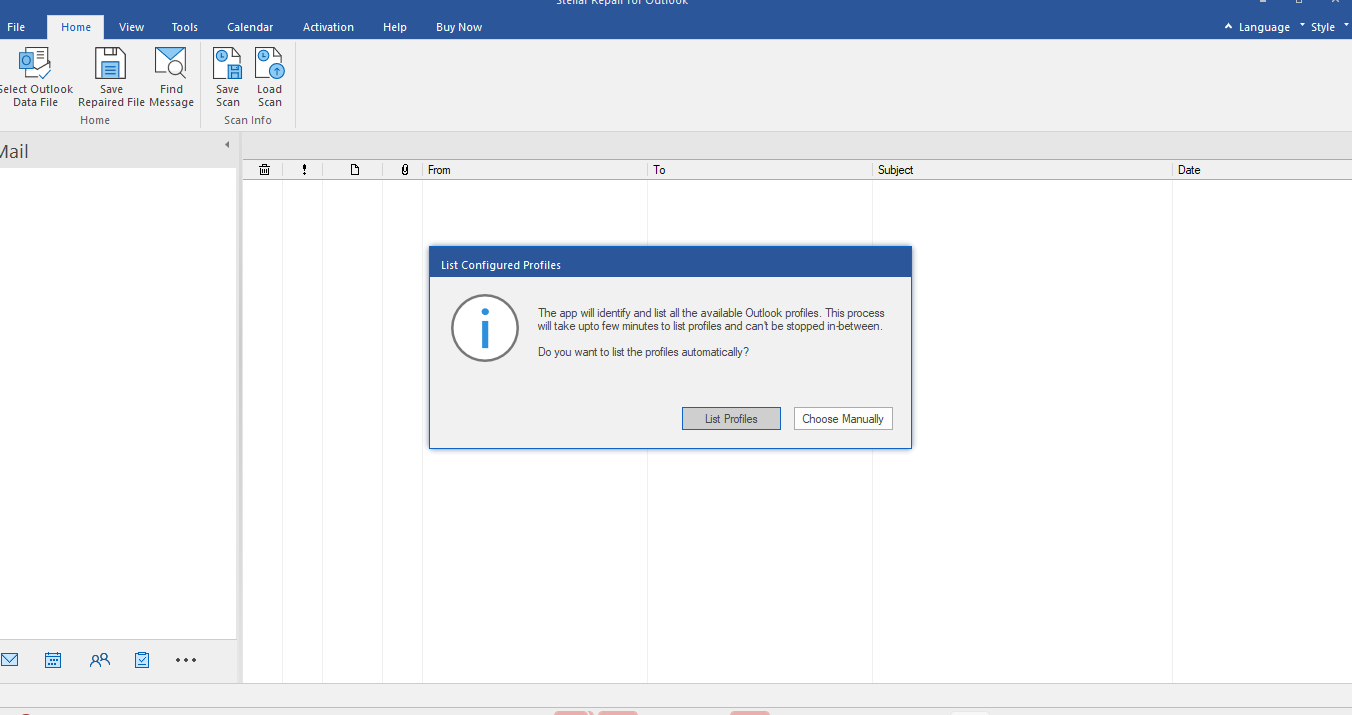
- After selecting the PST file, click “Repair”.
- Once the scan completes, all the recoverable items are displayed in a three-pane window.
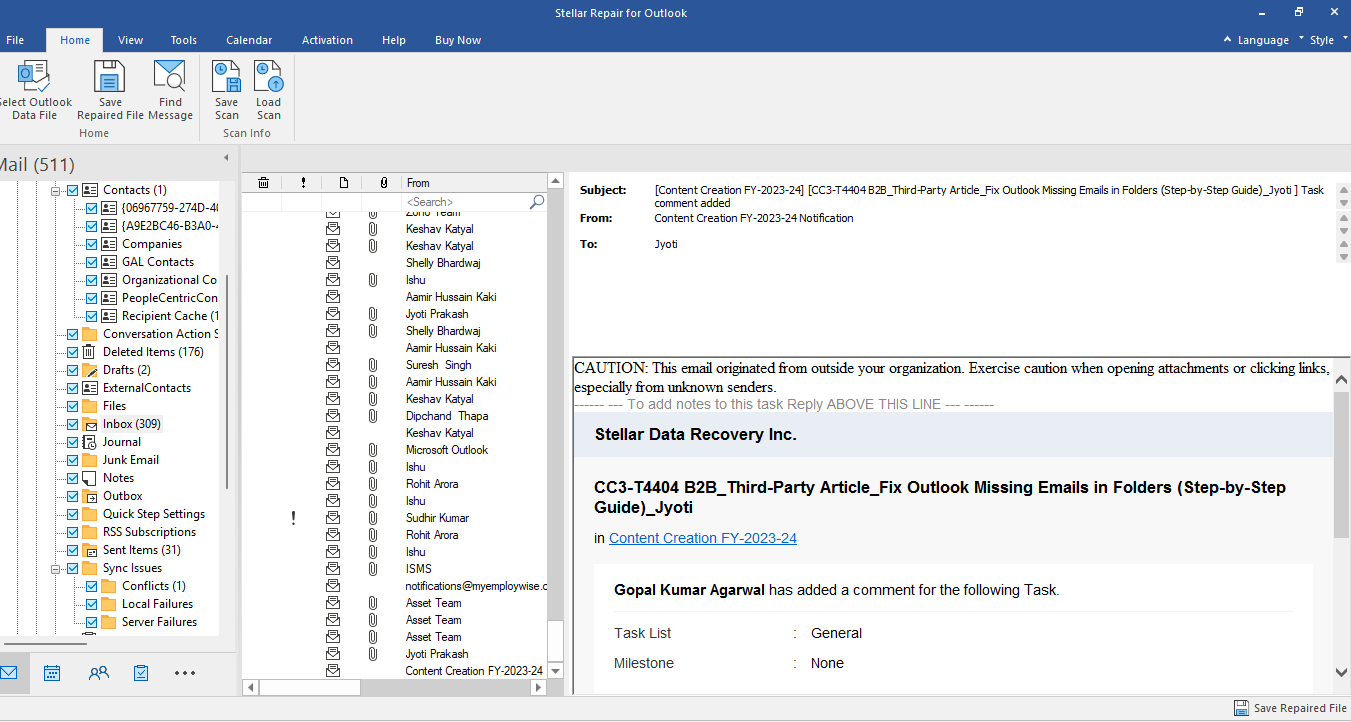
- Select the items you want to recover. Click Save Repaired File.
- Choose your preferred format (PST, MSG, EML, etc.) and then click on Next.
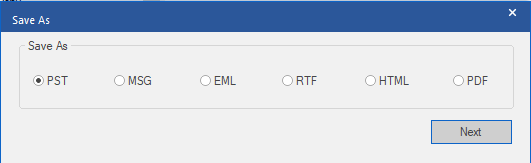
- Click on Browse to select a desired folder where you want to save your repaired PST file.
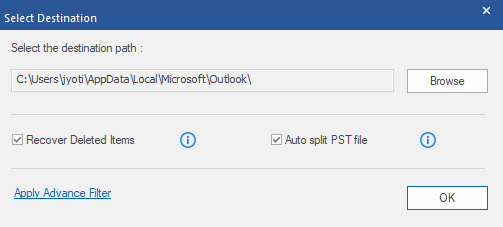
- Click OK.
Note: Make sure to select “Recovered Deleted Items” box if you want to recover your deleted mailbox data.
4. How to Prevent PST file from Corruption?
By following the below-mentioned best practices you can reduce the risk of PST file corruption and structure damage:
- Keep your PST file under defined size.
- Always exit Outlook using File > Exit rather than forcing it to close.
- Always store PST files on your local hard drive, not on network shares.
- Schedule weekly or bi-weekly automatic backups of your PST files.
- Keep Outlook and Windows updated.
- Regularly review and disable unnecessary add-ins.
Conclusion:
ScanPST often requires multiple runs if your PST file is severely damaged. At times, the utility can cause structure damage and data loss. To prevent such damage and data loss, you can use a professional PST repair tool, such as Stellar Repair for Outlook. This tool works in read-only mode.This means it doesn’t impact the original PST file. It can repair highly corrupted PST files of any size with complete data integrity and by maintaining folder structure and hierarchy.






I just like the helpful information you provide in your articles
Hi there to all, for the reason that I am genuinely keen of reading this website’s post to be updated on a regular basis. It carries pleasant stuff.
I very delighted to find this internet site on bing, just what I was searching for as well saved to fav
Good post! We will be linking to this particularly great post on our site. Keep up the great writing
Great article, i really enjoy reading it, i hope you post more, keep up the good wok , is gona come follow you for more , nice reading it.
o8ph0u